Install the GameGeeker Steam Price Comparison Extension

The GameGeeker browser extension shows the current lowest offers from GameGeeker-listed stores and the all-time recorded low directly on Steam pages.

Choose your browser

After going to the extension store, follow the prompts on the page and in your browser to add the extension and confirm the installation.

Chrome Installation Guide

  1. Chrome: Open the Chrome Web Store

    1. Open the Chrome Web Store

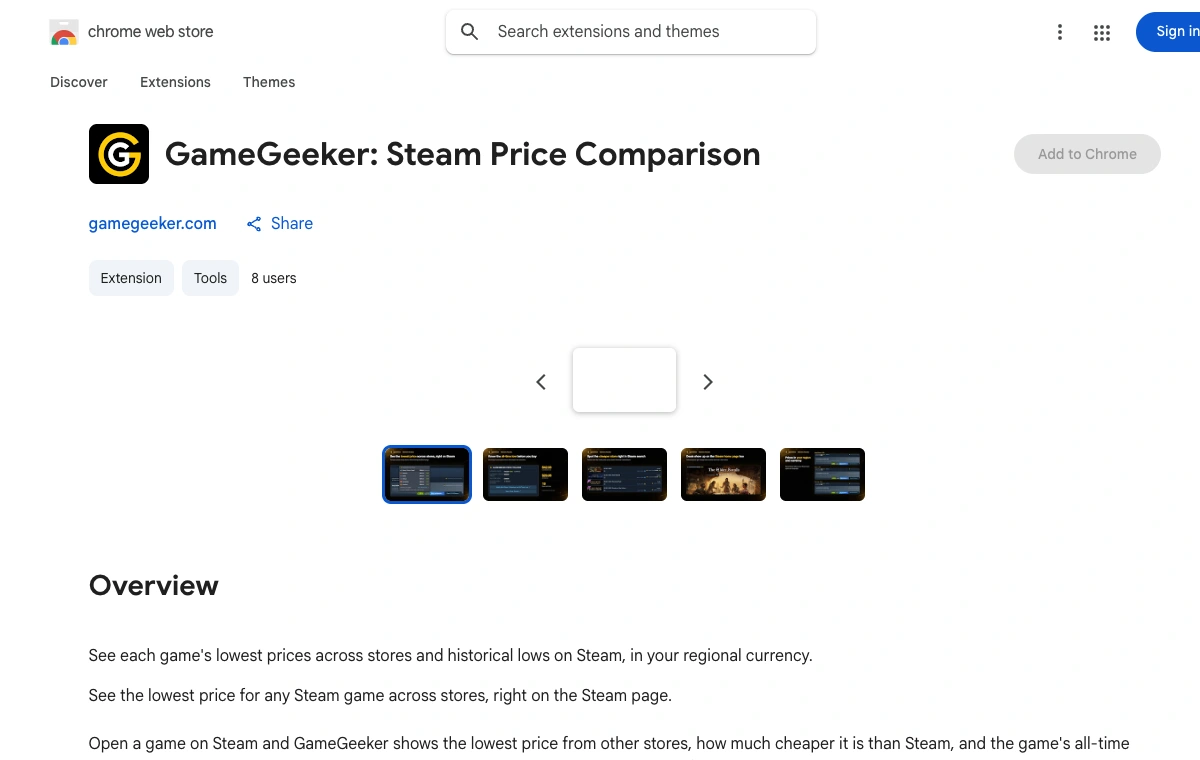
    Visit the GameGeeker page on the Chrome Web Store in your browser.

  2. ChromeGameGeekerSteam Price ComparisonConfirm adding the extension

    2. Add the extension

    Click Add to Chrome, review the requested permissions in the dialog, and confirm.

  3. Chromestore.steampowered.comGameGeekerCheck that GameGeeker is enabledRefresh the Steam page

    3. Refresh Steam

    Refresh or open a Steam store page; the GameGeeker panel appears automatically.

Installed from the official Chrome Web Store. GameGeeker works on Steam web pages only — this is not a Steam client installation.

What the GameGeeker Extension Does

The extension brings the store offers collected by GameGeeker straight onto the Steam pages you are browsing, so you can compare prices without leaving the store.

Current low and all-time low on game pages

On game detail pages where data is available, the extension shows the lowest current offer among the stores GameGeeker has collected, along with the all-time low price on record, helping you judge where the current price stands. The panel appears above the purchase box.

GameGeeker offer row above a Steam buy box
Offer row above the Steam buy box; prices shown were captured then, not current.

Hover to see each store's offer and buy

Hover over the comparison panel to expand the specific offers from multiple stores. Click an offer to go to that store and place your order, or head to GameGeeker to see every offer for the game.

Top five store prices shown in the extension comparison
Top-five store comparison; prices shown were captured then, not current.

Comparison in search results, home lists, and your wishlist

Search and category results, the game lists on the store home page, and your wishlist all carry comparison information. Some covers on the home page show a badge only when a third-party store is cheaper than Steam, so you can spot price gaps while browsing.

GameGeeker price information in Steam search results
Price comparison within Steam search results; prices shown were captured then, not current.

Region, currency, and language matching

Prices are matched first by the region information shown on the Steam page; if that region is not supported, the extension tries to match by currency, and falls back to US-region US dollars with an on-page notice when neither works. The interface follows Steam's supported languages and falls back to English when a language is not supported. Savings are calculated only when the page price and the offer use the same currency.

Extension prices matching Steam region and currency
Region-matched currency in the offer comparison; prices shown were captured then, not current.

Feature Demo

This video shows where the price comparison information appears on Steam pages and how to use it.

Full Usage Guide

Frequently Asked Questions

Which pages does the extension work on? Does it work in the Steam desktop client?

The extension only works on store.steampowered.com in your browser. Game detail pages show a comparison panel above the purchase box, and search and category results, the store home page's game lists, and your wishlist also carry comparison information, with some home page covers showing a badge when a third-party store is cheaper than Steam. It does not work in the Steam desktop client, whose built-in store page cannot load browser extensions. To compare prices for a game you are viewing in the client, open the same store page in a browser.

What do the lowest current offer and the all-time low mean? Why is one of them sometimes missing?

The lowest current offer is the cheapest in-stock offer among the stores GameGeeker currently has on record, and it changes as stores adjust their prices. The all-time low is the lowest price GameGeeker has recorded, useful for judging whether the current offer is close to a low point. The data comes from GameGeeker, and not every game is covered, nor does every covered game have a historical record or stores currently selling it. When the corresponding data is missing, that section simply is not shown, which is normal.

Which region's prices are shown, and how are savings calculated?

The extension first matches prices by the region information shown on the Steam page. If that region is not supported, it tries to match by currency; if that also fails, it falls back to US-region US dollars and shows a notice on the page. Savings are calculated only when the Steam page price and the offer use the same currency; when the currencies differ, the amount is not shown, to avoid misleading exchange-rate conversions. The interface language follows Steam's supported languages and falls back to English.

How often are prices updated, and what should I check before buying?

Offers come from GameGeeker's service. To avoid repeated requests, results may be reused for up to 10 minutes, so displayed prices can lag behind a store's actual changes and should not be treated as real-time. After jumping to a store, rely on the final price shown on the store's page, and before paying, check the game version, activation region, and final price.

The comparison panel does not show up after installation. What should I do?

Refresh the Steam page first and check again. If it still does not appear, open your browser's extension management page and confirm that the GameGeeker extension is enabled and has site access on store.steampowered.com. If everything is in order but the current game has no collected offers, the corresponding section will not display either.

How does the extension get updates?

Store installations — Chrome Web Store for both Chrome and Edge, Firefox Add-ons for Firefox — are normally updated automatically by your browser when a new version is published and the store is reachable. A ZIP installation does not update automatically: download the latest ZIP, extract it, and replace the contents of the existing installed folder at the same path, then reload the extension on your browser's extension management page and refresh the Steam page.